120Hz, SSDs and Lag Fixes: What Actually Makes a Gaming Console Feel Faster
Publié par : Éloïse Béranger-Duval — Rédactrice spécialisée en tech
Mis à jour le 26 septembre 2026
If your console feels slower than it used to, the cause is usually a stack of small bottlenecks, not one broken setting. Long load times, input lag, frame drops, loud fans and blurry 4K output often come from full storage, heat, outdated firmware, display processing, Wi-Fi congestion or the wrong game mode.
The best results usually start with the free fixes. Clean up the system, choose the right performance mode, then move to storage or network changes only when they match the problem. That approach saves time and avoids random boost tricks that do little or can make things worse.
Find the real bottleneck before changing everything
Console optimization works best when the fix matches the symptom. A game that takes forever to launch is not the same problem as a shooter with delayed aiming, and a loud fan points somewhere else again. Before buying accessories, spend a few minutes identifying what feels wrong. That makes every later change more useful.
| Symptom | Likely cause | First fix to try |
|---|---|---|
| Slow dashboard and menus | Cache clutter, full storage, pending updates | Restart fully, clear cache, free space |
| Long game load times | Slow or overloaded storage | Move games to SSD or internal fast storage |
| Frame drops or stutter | Resolution mode, heat, unstable frame pacing | Enable performance mode and improve ventilation |
| Online lag | Wi-Fi congestion, strict NAT, packet loss | Use Ethernet, test DNS, adjust router settings |
| Blurry image on 4K TV | Wrong video output or TV processing | Enable Game Mode, check 4K and HDR settings |
Do the safe reset first
A full shutdown is different from putting the console to sleep. Power it off completely, unplug it for a minute, then restart. This can refresh temporary files and background processes. Clearing the system cache is also safe on modern consoles. It does not delete games or save data, but it can improve dashboard navigation and fix odd glitches after updates.
Keep storage from becoming a silent drag
When a console’s internal drive is nearly full, updates, captures and game files have less room to breathe. A 1TB drive can fill after roughly 10 to 15 AAA games, especially if several live-service titles stay installed. Delete games you are not actively playing, remove old video captures and use the built-in storage analyzer to see what is actually taking space.
System and display settings that make games feel smoother
The fastest improvement often comes from choosing the right visual priority. Many console games offer two main modes: performance and resolution. Performance mode usually targets 60 FPS or 120 FPS by lowering resolution or some visual effects. Resolution mode may favor 4K detail, ray tracing or higher texture quality, but it can feel less responsive if the frame rate drops.
Windows Update KB5066835: Critical Security Enhancements — Access the official Microsoft documentation detailing the security improvements and vulnerability fixes included in this Windows operating system update.
Choose performance mode for responsiveness
If you play competitive shooters, racing games, fighting games or sports titles, performance mode is usually the better choice. A stable 60 FPS feels much smoother than 30 FPS, and 120Hz can make aiming and camera movement feel more immediate on compatible displays. For story-driven RPGs or cinematic games, resolution mode may be worth it if sharper scenery matters more than faster response.
Higher resolution, frame rate, latency, heat, storage speed and network stability all affect how a console feels in play. Push one part too hard and another can slip. Chasing 4K at every moment can increase GPU load and create uneven frame pacing. Choosing 1440p at 120Hz can feel cleaner in motion than 4K at 60Hz, even when the still image is less sharp. The best setup is the one that keeps motion steady and input responsive.
Check 120Hz, VRR and HDMI settings
For 4K at 120Hz with VRR, your console, game, display and cable all need HDMI 2.1 support. VRR, or Variable Refresh Rate, helps reduce screen tearing and visible stutter when frame rate fluctuates. Also enable ALLM or the TV’s Game Mode when available, because it reduces extra image processing that can add input latency. If the picture looks soft, confirm that the console is outputting the expected resolution and that HDR calibration has been completed in the system menu.
Reduce background noise in the system
Automatic video capture, constant notifications and background downloads can make a console feel busier than it needs to be. Disable automatic game clips if you never use them, pause downloads before playing online and close suspended apps or games you are not using. On Xbox, review Quick Resume titles if a game behaves oddly after being suspended. On PlayStation, rebuilding the database can help organize system data when menus feel sluggish or games behave unpredictably.
Storage upgrades: when an SSD is worth it
Storage is one of the few hardware areas where console users can see a clear, practical gain. Compared with a stock HDD, an NVMe SSD can reduce load times by 40-60%, and moving from older mechanical storage to fast solid-state storage often feels up to 50% faster. External SSDs can reach read speeds up to 1050MB/s, which is more than enough for many backward-compatible or last-generation games.
Internal SSD, external SSD or external HDD?
The right choice depends on the console and the games you play. PS5 games require compatible high-speed internal NVMe storage to run from expanded storage. Xbox Series X|S optimized games need the official-style expansion storage for full native support, while many older games can run from USB external drives. External HDDs are still useful as cheap parking space, but they are not the best option if faster loading is the goal.
| Storage option | Best for | Performance impact |
|---|---|---|
| Internal NVMe SSD | Current-generation games and fastest loading | Strongest improvement when compatible |
| External SSD | Older games, quick transfers, portable library | Much faster than HDD for supported titles |
| External HDD | Low-cost storage archive | Good capacity, slower load times |
Do not upgrade blindly
Before buying an SSD, check your console’s compatibility list and required specifications. For PS5, heatsink fit matters. For Xbox, proprietary expansion options may be simpler but more expensive. If your main issue is online lag or frame drops caused by heat, a storage upgrade will not fix the real problem. Spend where the bottleneck is.
Network tweaks for lower lag and steadier multiplayer
Online performance depends less on raw download speed than on latency, jitter and packet loss. More than 70% of gamers use Wi-Fi instead of wired connections, but Ethernet is still the simplest way to reduce instability. If you can run a cable from the router to the console, do that before changing advanced router settings.
Use Ethernet or improve Wi-Fi placement
If Ethernet is impossible, move the console and router into a cleaner signal path. Avoid hiding the router behind a TV, inside a cabinet or near thick walls. Use 5GHz or Wi-Fi 6 when available for lower congestion at short to medium range, but switch to 2.4GHz if the router is far away and the signal is weak. A stable slightly slower connection is better than a fast one that drops packets.
DNS, NAT and port forwarding
Changing DNS can improve download responsiveness in some locations. Common options to test include Cloudflare 1.1.1.1 and Google 8.8.8.8, but the best DNS depends on your region and internet provider. Run a network speed test before and after changing it instead of assuming one is always faster.
For multiplayer, NAT type matters. A strict NAT can make matchmaking, voice chat and peer connections less reliable. Port forwarding for your console or favorite game can lower ping by 10-20ms in some setups and improve connection consistency. If your router supports QoS, or Quality of Service, prioritize the console so downloads and streaming devices do not crowd out game traffic.
Cooling and maintenance that protect performance
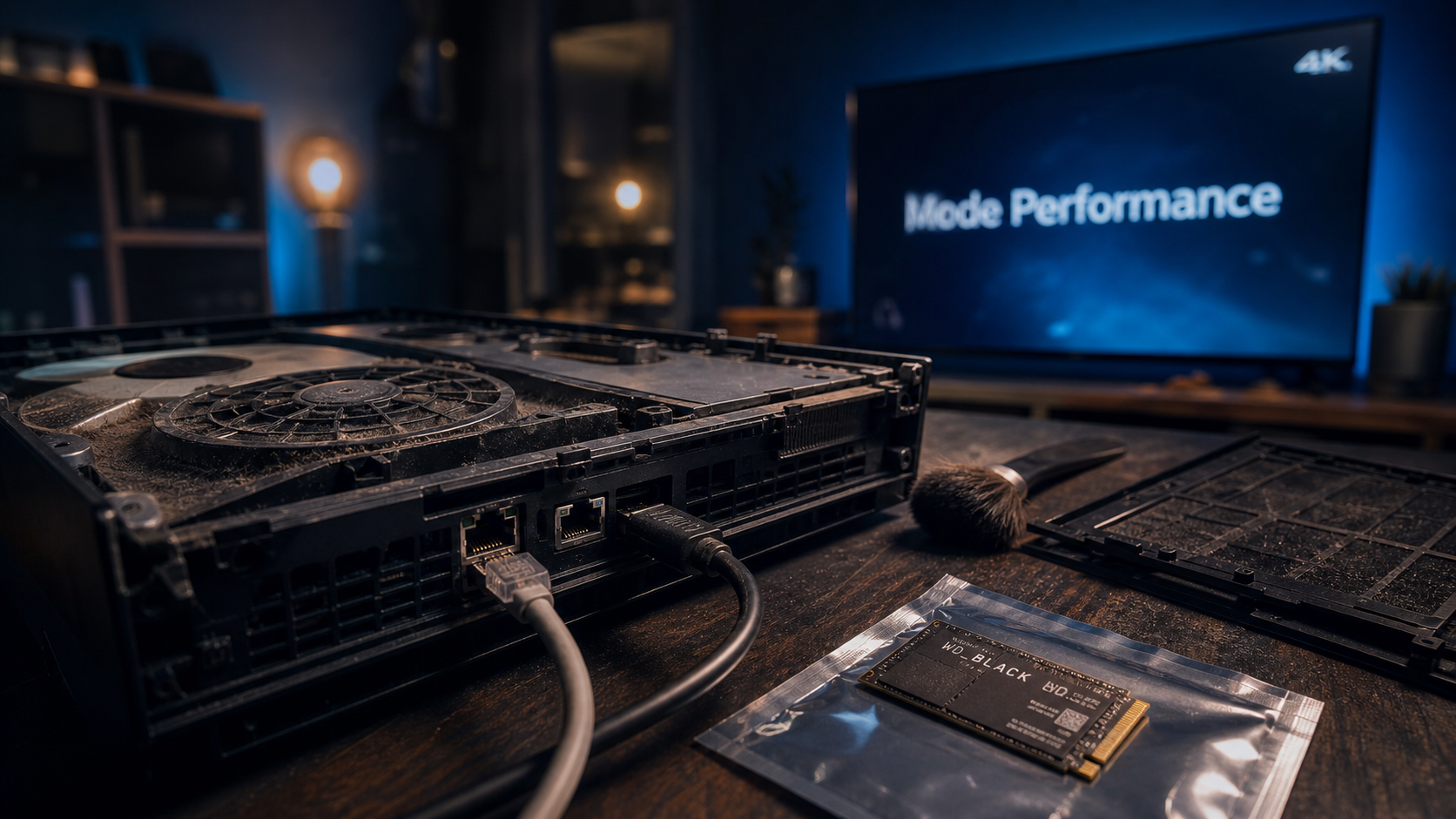
Dust buildup can cause thermal throttling, louder fan noise and even overheating shutdowns. A console is designed to manage heat, but it still needs airflow. Keep the room temperature below 95°F (35°C) when possible, avoid stacking devices around the console and leave clear space around intake and exhaust vents.
Clean vents without damaging the console
Power the console off, unplug it and use a soft brush or low-pressure air to remove dust from exterior vents. Do not spin fans aggressively with compressed air and avoid pushing dust deeper into the system. If the console is still loud after careful cleaning, internal dust or aging thermal paste may be involved, but opening the console can affect warranty coverage and should only be done if the risk is acceptable.
Update firmware, controllers and games
System updates often improve stability, storage behavior, controller communication and display compatibility. Update the console firmware, controller firmware and the games you play most. If a single game stutters after a patch, check its own graphics settings. Motion blur, field of view, VSync, performance mode and high-resolution texture packs can all affect perceived smoothness.
Use factory reset only as a last resort
A factory reset can help when crashes, corrupted settings or persistent system errors survive every other fix. Back up saves to the cloud or external storage first, then reset only after trying updates, cache clearing, storage cleanup and database repair options. For most players, regular maintenance and targeted settings changes are enough to keep a gaming console responsive for years. Découvrez Jeu de cartes à 2 : stratégie, rapidité ou mémoire, quel duel choisir pour trouver le jeu idéal à partager à deux.

Articles qui pourraient vous intéresser :
 RCA, optique ou USB : le bon convertisseur audio analogique vers numérique selon votre appareil
 Dolby Atmos, TrueSpace et modules : bien choisir son système home cinéma Bose
 Barre de son Samsung prix : caisson, Dolby Atmos et Q Symphony font la différence
 Comment capter la télévision sans antenne : internet, TNT intérieure ou satellite